Completely backup iPhone, iPad, and iPod

This is a good, safe, butt-covering thing to do before running an iOS software update, or before you migrate to a new device. iCloud backups are an enormous convenience, but I subscribe to Murphy’s Law, as well as the 3-2-1 Rule of Backups, so I like to maintain a backup of my iPhones and iPads in iTunes on one of my Macs:

First and always, make sure you have good backups of your Mac.

Then, clean out your old iOS backups in iTunes:

  1. Click on the iTunes menu, and go to Preferences…
  2. Click on Devices.
  3. In the list of Device Backups, with the dates, look for duplicate backups of your devices. Note the most recent backup, and leave it alone.
  4. Now click on each of the other backups, and below, click the button called Delete Backup.
  5. Do that for each duplicate backup, leaving only the most recent ones.
  6. Hit OK.

iTunes will take a bit of time to delete those files. You may see the rainbow beach ball.

Now, near the top of the iTunes window, under the search box, click on your iPhone or iPad. On the main Summary page, make sure that Encrypt iPhone Backups is turned on. If it’s not, click the checkbox, and enter a password. (As long as you choose Remember Password in Keychain, you can pick anything.)

iTunes will now run a full backup of your iOS device, including passwords for your sync accounts and wifi networks.


LaCie SilverKeeper updated

LaCie wrote this free backup app called SilverKeeper a long time ago, and I quite liked it, but I had a hard time counting on it. It seemed like they weren’t serious about it. But they recently updated it to be a fully OS X Leopard-compatible, universal binary app. I’m testing it out now on a network volume, and will update this post with my findings.
Update: So far so good. I have SilverKeeper installed at a couple of environments, and it appears to be reliable and unobtrusive.

My iPhone 2.0 Saga, Part III: Good news/bad news

I started getting this really annoying error in iTunes, when trying to check for updates in the App Store:

“We could not complete your iTunes Store request.
An unknown error occurred (5002).

There was an error in the iTunes Store. Please try again later.”

I had resolved this once in the past by deleting and redownloading apps, but that didn’t work this time. So, since the 2.1 update seemed to go so well with just a straight “Update”, I thought I’d see if the iPhone backup process really was fixed. I didn’t mention in Parts I or II that the 2.0 backup-and-restore system, besides taking an obnoxiously long time, also failed to restore all the preferences to the phone, thus requiring at least a partial reconfiguration of my device.

After ensuring that my backups were turned on, and that the MobileSync folder had a recent backup (only 7.9MB!), your intrepid correspondent hit the Restore button in iTunes. And…

…It worked! The restore process itself was pretty quick, though It took a while to reïnstall all the apps and the music and the photos and the podcasts, but that’s due to my own particular digital gluttony. All my app preferences and other configs and address book and SMS messages and everything came back. All I had to do was reörganize the apps on the Springboard (they installed alphabetically, which is understandable, though I still want Apple to make that easy).

But…

The stupid iTunes error remains. Last time, I tried changing my iTS password and reëntering my credit card info, according to suggestions in the Apple discussions, but that didn’t work, and I really don’t think that’s a reasonable fix, since Apple doesn’t let you use the same password that you’ve used in the last year.

I’m going to do further research on that, but the successful restore was worth an immediate post. 

P.S. I like umlauts.

Old G4 with processor upgrade is crashing

I have a G4 running 10.4.  I upgraded the processor last year.  It’s now panicking often. Blue screens. Freezes. Fun, fun. I am sure the original processor is somewhere, nearby, packed in a moving box.
The only thing I really want to save on that tower is, predictably, my iTunes library which is on a 2nd hard drive which is mounted separately from the original disk.

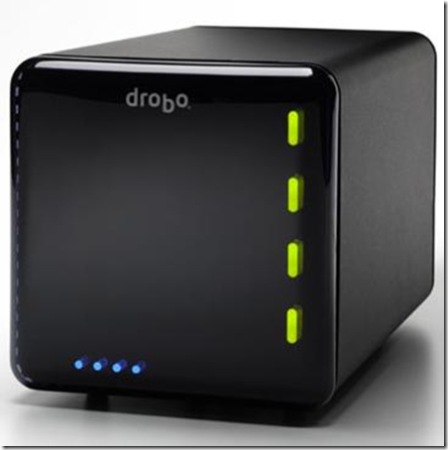
I suspect a new Mac will be purchased very soon. I have an original Drobo, but have yet to purchase drives for it.

Allow the yelling about backing up to commence.

I’m a bit biased here, as I have always distrusted processor upgrades. They just seemed more trouble and expense than benefit. Now with the Intel machines, I figure they’re pretty much irrelevant.

Your G4 may be salvageable, but I really do think you need a new Mac. Bite that bullet, bubba. And to get your data off the G4, if it won’t boot to FireWire target disk mode by booting while holding down the “T” key, you can buy a Firewire enclosure or even better, a data cable such as this one, for the internal hard drives from which you need to rescue data.

Excellent work buying that Drobo. Now about those drives

And then… BAAAAAAACCKK UPPPPPPPP!!!!

iPhone 2.1: so far, so good

I haven’t gotten a chance to post my iPhone saga. Gonna do that next, but right here I just want to record that I was able to run the plain ol’ software update from within iTunes, and it went smooth as silk. So far, the phone is behaving, and backups in iTunes do happen a lot faster, as promised, so this post should be less relevant from here on out.
I haven’t put battery life to the full test. Here’s hoping…!

Drobo failure

Man, I love my Drobo. I even wrote about it for our local alt-newsweekly. We’ve installed Drobos at several clients, and we’ve never had occasion to consider any other mass-storage device. Their support has been stellar … up to now.
Two weeks ago, the drive volume on my Drobo went belly-up. Couldn’t access it except for just long enough — THANK GOODNESS — to back up everything. I tried reformatting it but the damn thing won’t stay mounted.

The thing is, I wouldn’t mind as much if the Drobo engineers weren’t still, purportedly, looking at my diagnostic file, after a WEEK. I’m stuck. It was easy enough to retrieve my financial data, but my music and multimedia remain in limbo on a single external hard drive. I want to try another reformat, or maybe buy an additional SATA drive to increase storage (it wasn’t near full, and all of the disk lights were all-systems-go green), but I really just need to hear something from the engineers to set my mind at ease.

Stop Time Machine from nagging about every external disk

Straight from afp548.com:

TipsA while back I posted a tip on a useful, but little known, preference setting for dealing with the Kerberos Agent dialog box. Today I’m posting another little known setting to handle an even more annoying box. The time machine “Use this disk for backup?” dialog.

The scenario is like this. Every time you plug in a different external disk time machine asks if you want to use it for backups. This is fine for the home user that can just click the No button, and get on with life. This is a giant pain in a managed deployment though as the setting is set per machine, not disk. Imagine if you have 3,000 Macs and 500 external disks that float around. That’s a lot of nag windows and a lot of chances for users to screw up. What we need is a way to set a policy that tells time machine to not ask about every disk that is plugged in. That way we can guide the users to the correct result. Here it is (one line):

defaults write com.apple.timemachine DoNotOfferNewDisksForBackup -bool YES

As with the Kerberos setting, I would push this with policy so that you don’t need to touch every Mac by hand.

Totally great enhancements to OS X

I’m editing this from my old web page. I’ll do an updated list soon; meanwhile I tweaked this, struck out some old stuff, and emboldened my favorites. Since I’ve been blogging, I’ve posted many more entries like this, but I want to preserve this list as a sample of the Mac tweaks I use all the time. I believe that the key to making OS X work best for you is to customize it. There are so many fantastic 3rd-party apps and add-ons out there, and often for free. The modern Mac can handle more of these tweaks than one might think, and without hiccupping a bit. If I like them, and they’re shareware, I’ve paid the few bucks, and they’ve had a great effect on my productivity. (Note: this list is mostly not about stand-alone applications, but rather plug-ins that modify the operation of the Mac.)

SMARTreporter – get notified if one of your hard drives is going to fail. Of course, even if it does, you’re fine, because you’re backing up every day, right?

MondoMouse – I’m putting this so close the top because I’m totally in love with it! Resize or move windows without clicking on a window handle. Totally crucial for smaller screens, especially.

Déjà Vu – If you’re not backing up every day, you will lose something precious at some time in your computing life. I may not even touch your computer if you don’t have an external backup. So, we can use Déjà Vu to schedule backups. Plug in your Firewire drive, and enjoy peace of mind. SuperDuper and ChronoSync are also fantastic. Slightly different tools for different situations. Time Machine is an amazing piece of software, but after almost a year with it, I still find it very hard to trust as one’s exclusive backup method. We almost always have at least a SuperDuper clone on a separate partition. (By the way, if you were wondering, Apple’s Backup is kind of terrible, but the next version of OS X —10.5 Leopard, due this Spring — will include a program called Time Machine that promises a great new era in backups.)

AppleScript and Automator – Yes, I know these are built-in, but the point is fantastic sites such as Doug’s AppleScripts for iTunes and automator.us and Automator World are just fantastic for boosting one’s efficiency.

LaunchBar – The future of search was in our hands well before Tiger was announced! I can’t wait to see how LB incorporates with Apple’s next-generation operating system.

Quicksilver – A lot like LaunchBar, but free and with all kinds of neat little plug-ins built in. Quicksilver can also replace Spark to launch apps with keyboard shortcuts. I prefer the LaunchBar/Spark/Synergy/PTHPasteboard setup, mostly because Quicksilver ran a little slow on my PowerBook. Now that I’ve added memory to my laptop, I might give QS another try.

Default Folder X – How to get to favorite and recent files instantaneously. Tried-and-true since OS 9. Fantastic in a production environment.

PTHPasteboard – This free multi-item clipboard dramatically reduces my having to switch between applications. Keyboard activated, of course, or what would be the point. (BTW, Quicksilver has this, and Spark, and Synergy, all built-in.)

Spark – Set up your own shortcut keys

Unsanity haxies – These folks have been the most consistently great developers for minor-but-major add-ons for OS X. Check out:

  • WindowShade – Bring back that useful little OS 9 feature
  • Menu Master – instantly assign a keyboard shortcut to any menu item

Peter Maurer – I don’t use these so much anymore, but Maurer’s stuff is genius, much like the Unsanity group. He does Butler, which is a lot like LaunchBar and QuickSilver, but you should also look at:

  • TextExpander – Autocompletes text that you type frequently (the company SmileOnMyMac bought it from him recently)
  • Witch – Enhances the Apple-Tab application switching to include all open windows

Salling Clicker – the best reason to buy a Bluetooth phone
So cool, and man I miss it from my Sony-Ericsson & Treo days, but it ain’t available for the iPhone. The developer comments here.

MailUnreadStatusBar – puts a count of unread e-mails in your menu bar
Or you could go for Inbox Zero.

Synergy – best-of-breed iTunes control

You Control – I gotta admit, for a one-stop package, it’s worth every cent.
Haven’t used it in a while. It seemed to take a lot of resources.

MenuCalendarClock – iCal integration in a highly configurable menu-bar clock. And now there’s a new, free menu bar widget called MagiCal that does much of the same thing.

Text Wielder – a collection that will show in the Services submenu of any Cocoa (OS X-native) application. Look for more Services, such as CalcService, on VersionTracker. (Note: The link to TextWielder will begin downloading the disk image.)
Services were a fine idea, but they just never seem to have made it.

SBook – convert text to an Address Book card
Definitely made moot by Leopard’s Data Detectors

Just good software:

VueScan – The best scanning software available, and compatible with just about any scanner you can plug into your Mac

GraphicConverter – a great “can opener” for hundreds of kinds of image files

Disable backups to speed iPhone/iPod touch syncing

Anyone who has iPhone 2.0 software is faced with the gi-normously long backups that iTunes performs almost every time the phone is plugged in. I’m grateful for the idea, of course; I spend a lot of time customizing my phone, and I would like all my settings, and logins, and game levels, and data backed up. Problem is, Apple’s implementation is terrible. Here’s the Ars Technica article about the issue, but in a nutshell:
  • The backups can take anywhere from 30 minutes to 4 hours.
  • The backups are not “incremental,” i.e. they backup all the data on the phone.
  • If someone calls you, the backup is interrupted.
  • Whenever the backup is cancelled or interrupted — when, y’know, have to use the phone — that backup data set is corrupted.
So here’s a solution. I recommend reading the whole post.

I have several (more than 30) applications installed in my iPhone 2.0 (some of them are over 10MB). I’ve been a bit disappointed with the oh-so-slow syncs in iTunes due to the required backup process. Searching a bit, I found that I could disable the backups by setting a hidden iTunes preference. Quit iTunes, open Terminal, and enter this command:

defaults write com.apple.itunes DeviceBackupsDisabled -bool YES

From the comments:

Also check out the free Backup Disabler, which is probably just a GUI for this hint.

UPDATE: iPhone firmware 2.0.1 dramatically sped up my backups! Yaaaaaaaay! We’ll see if it fixes the other stuff. In brief testing, the phone feels less crashy.

UPDATE: The backups got slower again after I started accumulating a lot of third-party data on the phone again.

UPDATE: iPhone firmware 2.1 is waaaaaaaaaaay faster on backups, and on installing apps.

Leopard Server: file names are screwed up when connecting over SMB

Apple is all too aware of the chronic Apple File Protocol authentication issues with 10.5 Server. Some people have fixed this with a cron task that restarts AFP, say, every night. In my experience, this starts to corrupt file sharing altogether, to the point that, eventually, nobody can log in over AFP.

So I’ve been switching people to using SMB (Windows file sharing), which sucks just on principle, but it also cuts out Time Machine backups. I am also nervous about it losing Apple-specific file resources.

Anyhoo, at one site where I’ve asked everyone to connect over SMB, several on the server appeared with weird random file names, such as “_GNEWM~A” or “4UI5WM~7”. Didn’t matter which machine or which user account I was using to connect.

After some poking around, I figured out that folders and files with odd characters in their path, and especially with spaces at the ends of their names, were the culprits. Extra long names, too.

I don’t know if this is an historic problem with OS X Server, and I just never ran into it because most of my clients use Macs, or whether this is specific to 10.5. Regardless, right now OS X Server is hurting my schedule really bad, and I can’t believe I’m having to be wary of proferring it as a recommendation.