My iPhone 2.0 Saga, Part II: Fix apps crashing

If all of your third-party App Store apps are crashing, and maybe your phone’s music library is no longer accessible, my very helpful AppleCare technician recommended the following procedure.

  1. Delete all the apps from the phone.
  2. Go into ~/Music/iTunes/Mobile Applications, select all, and copy/paste the list of files into your favorite notetaker, so you can remember all the bloody apps in your Library. I have 99.
  3. Delete all the apps from iTunes, moving files to the Trash.
  4. REDOWNLOAD every single app from the App Store (the Store will let you redownload paid apps without recharging you).
  5. Re-sync the iPhone, perhaps being more particular about which apps you actually keep on the phone.
  6. Reconfigure all your apps, and start your games from scratch. Lovely.

This worked. What a pain, but it worked. So it appears that some application somehow got corrupted, and it screwed up the whole phone. The really annoying part is that, because of Apple’s very closed system, you can’t tell which is the offending app.

Now, only two days ago, after two great weeks of fully stable iPhone performance, the damn thing started crashing again. This time, however, I knew which certain few applications I had purchased recently, and I was able to redownload and reinstall just those, and that did the trick. At least so far.

I just can’t believe that, for all of its “walled-garden” approach, Apple couldn’t prevent one bad… er… app-le, from… umm… spoiling… no, I better not.

Note: I have found, though all of these tribulations, that it is sometimes efficacious to re-install your iPhone applications in groups, according to category. Otherwise, they go in alphabetically, which has its own appeal, but can get tedious if you’re slogging through a long list. I would love for Apple to introduce some kind of quick organizational tool for apps in iTunes that would let you choose the order for apps to appear on the home screen. Ferpetessake, they have categories built in to the App Store! Sheesh.

My iPhone 2.0 Saga, Part I: AppleCare

Starting about 2 weeks after I bought my iPhone 3G (which was on the day of its release), my third-party apps, those downloaded from the App Store, started crashing. All of them. Consistently. Tap on one, it flashes its first screen, then flashes away, back to the Home screen.

Feh.

For the next month, I suffered: I wiped the phone. I reinstalled. I backed up and restored. I did two full erases, which took upwards of an hour each. I restored again. I probably restored a dozen times, and most of those times I had to re-setup the phone from scratch. I learned a way to extract my SMS messages from the backup files (be ready to use the Terminal!). 

Finally I called AppleCare.

AppleCare for the iPhone is a funny thing. For the most part, the iPhone either works or it doesn’t. If it doesn’t, you restore it, and then it starts working again. If the restore doesn’t work, you have a bad phone and you need to take it to the Apple Store so they can replace it.

So I was surprised when the first rep I talked to had recommendations beyond that, and very weird ones, to boot. He told me that:

a) I had too many applications on the phone; that the phone, like a computer, couldn’t handle too many applications running at the same time. I said they weren’t running at the same time: It is very clear that only Apple applications can run background processes, and all third-party programs stop everything when you go close them. He said that wasn’t true. I said Steve Jobs had said it He said it wasn’t true. I said, show me some documentation, something to tell me that there is a maximum number of apps you should keep. He said he didn’t need documentation; he learned it in training. I said, no you bloody well did NOT.

b) I should reboot my phone every day, just like my computer. I told him I very rarely need to reboot my computer. He said I needed to. I said, show me some documentation, something to tell me that there is a maximum number of apps you should keep. He said he didn’t need documentation; he learned it in training. I said, no you bloody well did NOT.

And then I said, lemme talk to your supervisor.

After about 20 minutes, a very friendly and helpful tier-2 technician came on the horn. I told him about a) and b), and he assured me that he had instructed the previous phone monkey not to spread bullpuckey like that around anymore. Thank you, I said, from the entire iPhone-using populace.

Then began our dialogue, by phone and email, trying to resolve my app-crashing issue. We went through the whole restore process a couple more times, when finally he suggested the procedure that, for organizational purposes and ease of reading, I’m going to post in Part II.

iPhone 2.1: so far, so good

I haven’t gotten a chance to post my iPhone saga. Gonna do that next, but right here I just want to record that I was able to run the plain ol’ software update from within iTunes, and it went smooth as silk. So far, the phone is behaving, and backups in iTunes do happen a lot faster, as promised, so this post should be less relevant from here on out.
I haven’t put battery life to the full test. Here’s hoping…!

Drobo failure

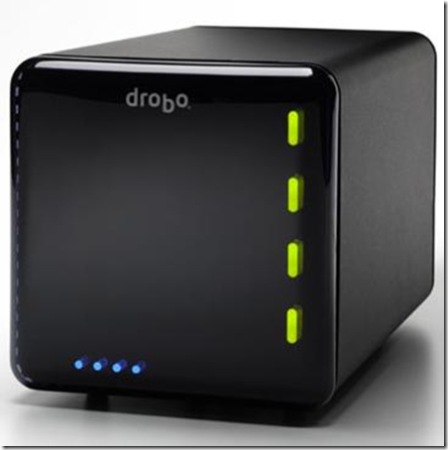
Man, I love my Drobo. I even wrote about it for our local alt-newsweekly. We’ve installed Drobos at several clients, and we’ve never had occasion to consider any other mass-storage device. Their support has been stellar … up to now.
Two weeks ago, the drive volume on my Drobo went belly-up. Couldn’t access it except for just long enough — THANK GOODNESS — to back up everything. I tried reformatting it but the damn thing won’t stay mounted.

The thing is, I wouldn’t mind as much if the Drobo engineers weren’t still, purportedly, looking at my diagnostic file, after a WEEK. I’m stuck. It was easy enough to retrieve my financial data, but my music and multimedia remain in limbo on a single external hard drive. I want to try another reformat, or maybe buy an additional SATA drive to increase storage (it wasn’t near full, and all of the disk lights were all-systems-go green), but I really just need to hear something from the engineers to set my mind at ease.

Theft-prevention for your Mac

Last year, I wrote about some folks in San Antonio who lost a couple of iMacs to theft. The SAPD reports that crime went up last year from 2006, and I have heard, secondhand, from a crime-statistician that there has been a marked increase again in 2008.
It goes without saying that portable computers are even more vulnerable than desktops, and it’s inconvenient to use on them the security cables I mentioned in the previous post.

So here are a few software-plus-service packages that people should know about. One of them you may already be using:

Back to My Mac

Since Leopard came out, the MobileMe-né-.Mac service has offered a feature called Back to My Mac. I’m not going to dwell on this, because it is one of the least reliable things Apple has ever produced, but it is worth mentioning that it did help one user reclaim her stolen MacBook.

Paid services: MacPhoneHome and Undercover

These are really cool services, and quite inexpensive. I really like that they involve one-time fees, with no monitoring charges. The first one, MacPhoneHome, has been around for awhile, along with its cousin PCPhoneHome. They purport success, and the $30 tag is great. But my main man Erick recently uncovered Undercover, which has a phenomenal feature set, and is clearly designed by Mac lovers. I’m sure both of these services would have roughly the same chance of recovering your property — may you never have to find out — but Undercover just feels like a better product.

Dynamic DNS

I also won’t spend much time here either, ‘cos it would have to get technical. Quick definition: Dynamic DNS uses a free service such as dyndns.com to translate an IP address — be it your home or office internet’s ever-changing IP, or whichever connection your laptop happens to be using a the moment — into a hostname, e.g. johnqmacbook.dyndns.org. So I have a program called DNSUpdate continually reporting my MacBook Pro’s external IP address to DynDNS. It’s a system-level process that starts at bootup, so the hope is that, if someone swiped my laptop and fired it up, it would reports its address, and just maybe Johnny Law could work with the relevant internet service provider to track down that last-known location. It’s a long shot, but the other services discussed here partially bet on the same probability.

Stop Time Machine from nagging about every external disk

Straight from afp548.com:

TipsA while back I posted a tip on a useful, but little known, preference setting for dealing with the Kerberos Agent dialog box. Today I’m posting another little known setting to handle an even more annoying box. The time machine “Use this disk for backup?” dialog.

The scenario is like this. Every time you plug in a different external disk time machine asks if you want to use it for backups. This is fine for the home user that can just click the No button, and get on with life. This is a giant pain in a managed deployment though as the setting is set per machine, not disk. Imagine if you have 3,000 Macs and 500 external disks that float around. That’s a lot of nag windows and a lot of chances for users to screw up. What we need is a way to set a policy that tells time machine to not ask about every disk that is plugged in. That way we can guide the users to the correct result. Here it is (one line):

defaults write com.apple.timemachine DoNotOfferNewDisksForBackup -bool YES

As with the Kerberos setting, I would push this with policy so that you don’t need to touch every Mac by hand.

Totally great enhancements to OS X

I’m editing this from my old web page. I’ll do an updated list soon; meanwhile I tweaked this, struck out some old stuff, and emboldened my favorites. Since I’ve been blogging, I’ve posted many more entries like this, but I want to preserve this list as a sample of the Mac tweaks I use all the time. I believe that the key to making OS X work best for you is to customize it. There are so many fantastic 3rd-party apps and add-ons out there, and often for free. The modern Mac can handle more of these tweaks than one might think, and without hiccupping a bit. If I like them, and they’re shareware, I’ve paid the few bucks, and they’ve had a great effect on my productivity. (Note: this list is mostly not about stand-alone applications, but rather plug-ins that modify the operation of the Mac.)

SMARTreporter – get notified if one of your hard drives is going to fail. Of course, even if it does, you’re fine, because you’re backing up every day, right?

MondoMouse – I’m putting this so close the top because I’m totally in love with it! Resize or move windows without clicking on a window handle. Totally crucial for smaller screens, especially.

Déjà Vu – If you’re not backing up every day, you will lose something precious at some time in your computing life. I may not even touch your computer if you don’t have an external backup. So, we can use Déjà Vu to schedule backups. Plug in your Firewire drive, and enjoy peace of mind. SuperDuper and ChronoSync are also fantastic. Slightly different tools for different situations. Time Machine is an amazing piece of software, but after almost a year with it, I still find it very hard to trust as one’s exclusive backup method. We almost always have at least a SuperDuper clone on a separate partition. (By the way, if you were wondering, Apple’s Backup is kind of terrible, but the next version of OS X —10.5 Leopard, due this Spring — will include a program called Time Machine that promises a great new era in backups.)

AppleScript and Automator – Yes, I know these are built-in, but the point is fantastic sites such as Doug’s AppleScripts for iTunes and automator.us and Automator World are just fantastic for boosting one’s efficiency.

LaunchBar – The future of search was in our hands well before Tiger was announced! I can’t wait to see how LB incorporates with Apple’s next-generation operating system.

Quicksilver – A lot like LaunchBar, but free and with all kinds of neat little plug-ins built in. Quicksilver can also replace Spark to launch apps with keyboard shortcuts. I prefer the LaunchBar/Spark/Synergy/PTHPasteboard setup, mostly because Quicksilver ran a little slow on my PowerBook. Now that I’ve added memory to my laptop, I might give QS another try.

Default Folder X – How to get to favorite and recent files instantaneously. Tried-and-true since OS 9. Fantastic in a production environment.

PTHPasteboard – This free multi-item clipboard dramatically reduces my having to switch between applications. Keyboard activated, of course, or what would be the point. (BTW, Quicksilver has this, and Spark, and Synergy, all built-in.)

Spark – Set up your own shortcut keys

Unsanity haxies – These folks have been the most consistently great developers for minor-but-major add-ons for OS X. Check out:

  • WindowShade – Bring back that useful little OS 9 feature
  • Menu Master – instantly assign a keyboard shortcut to any menu item

Peter Maurer – I don’t use these so much anymore, but Maurer’s stuff is genius, much like the Unsanity group. He does Butler, which is a lot like LaunchBar and QuickSilver, but you should also look at:

  • TextExpander – Autocompletes text that you type frequently (the company SmileOnMyMac bought it from him recently)
  • Witch – Enhances the Apple-Tab application switching to include all open windows

Salling Clicker – the best reason to buy a Bluetooth phone
So cool, and man I miss it from my Sony-Ericsson & Treo days, but it ain’t available for the iPhone. The developer comments here.

MailUnreadStatusBar – puts a count of unread e-mails in your menu bar
Or you could go for Inbox Zero.

Synergy – best-of-breed iTunes control

You Control – I gotta admit, for a one-stop package, it’s worth every cent.
Haven’t used it in a while. It seemed to take a lot of resources.

MenuCalendarClock – iCal integration in a highly configurable menu-bar clock. And now there’s a new, free menu bar widget called MagiCal that does much of the same thing.

Text Wielder – a collection that will show in the Services submenu of any Cocoa (OS X-native) application. Look for more Services, such as CalcService, on VersionTracker. (Note: The link to TextWielder will begin downloading the disk image.)
Services were a fine idea, but they just never seem to have made it.

SBook – convert text to an Address Book card
Definitely made moot by Leopard’s Data Detectors

Just good software:

VueScan – The best scanning software available, and compatible with just about any scanner you can plug into your Mac

GraphicConverter – a great “can opener” for hundreds of kinds of image files

Word up

“Welcome to WordPress. This is your first post. Edit or delete it, then start blogging!”
Gonna leave this here. Welcome to the new J2Mac page. Redesign is happening as we speak. On the off chance you happen to be watching today, please pardon any back ‘n’ forth. And if you have any WordPress tips for me, throw ’em at info@j2mac.com. I’m doing this seat-of-the-pants as usual, and will clean it up quick as I can.

Logos in emails

When I see that someone has a graphic in their email signature, I try
to encourage them to ditch it. It always implies that each of their
email messages has an attachment, and sometimes I search for or sort
by messages with attachments.

It's not what email is best at, and nobody in the world will think
your organization less professional if you don't have your logo in
your signature. And there are ways of formatting your signature so it
will look good.