
Allow me to hip you to two categories of power tools that can make one’s work so much easier.
Text Expansion
The idea here is that you type a short set of characters, and a longer set of characters comes out. The short set is called an “abbreviation,” and the whole item, abbreviation + the expanded content, is a “snippet.”
You can see a built-in example of text expansion on an iPhone or Mac, in Settings > General > Keyboard > Text Replacement. On Android, it might be in something like General management > Samsung keyboard settings > Text shortcuts.
Here are some examples: When I type “@@” my phone changes it to my work email, “@@@” is my personal email, “jmnam” is my full name, “jmph” is my phone number, “jmsig” is my email signature…you get the picture. I also have correction snippets, cos, like, I always want to type “Hubspot” like that but it’s actually “HubSpot” so I have it correct me.
The standalone apps are more robust. With the one I use, Rocket Typist, I type “,,setios” and get what you see in this screenshot, where I could choose from any of the options.
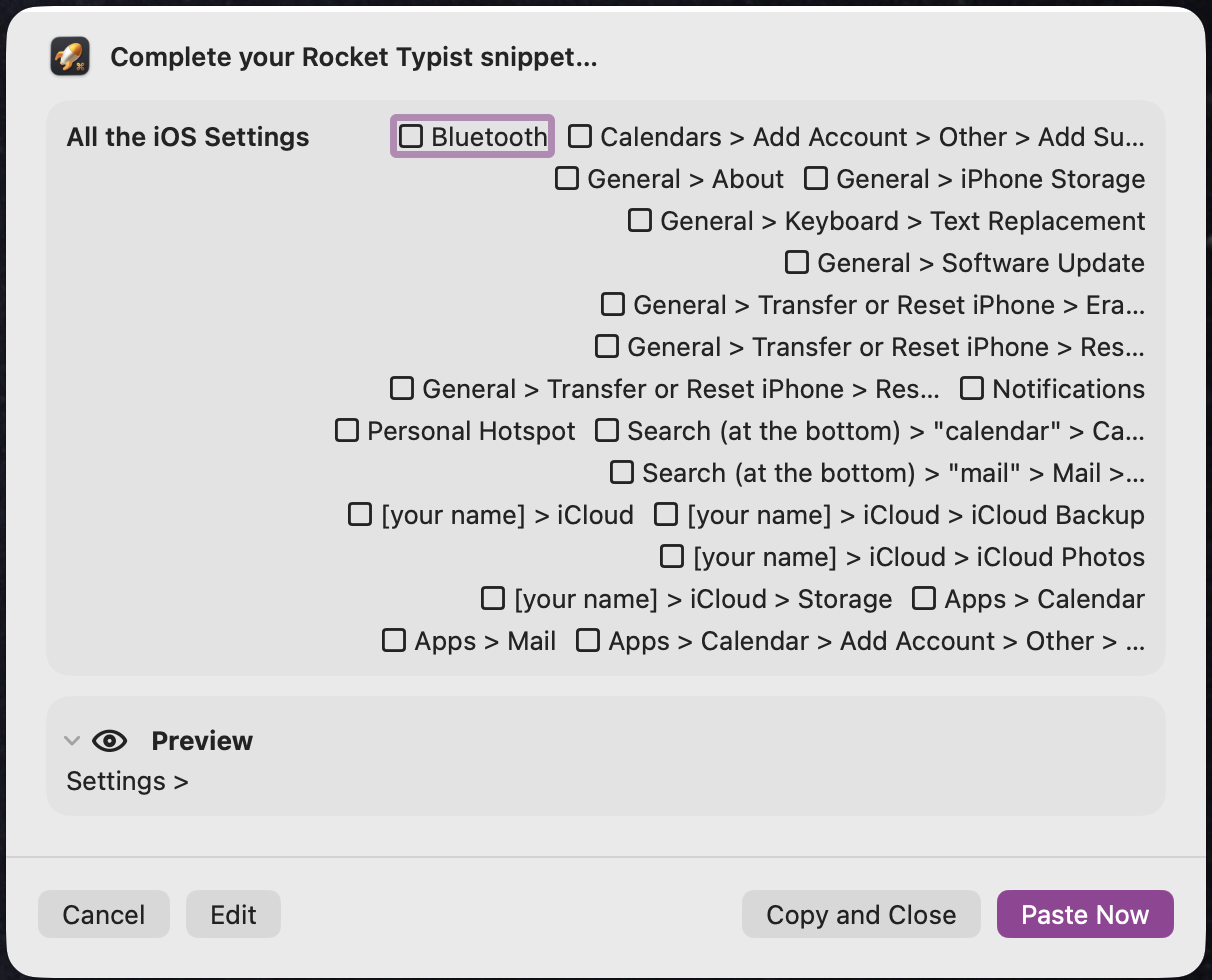
I have literally hundreds of these snippets, and I don’t have to remember all the abbreviations because I can call up my expander app—with a keyboard shortcut on my Mac or an alternate keyboard on iOS—and start typing anything from the abbreviation or content, and it will surface the snippet.
Setting one of these utilities up isn’t hard, and can benefit you as soon as you start feeding it stuff. It can feel like an overwhelming cornucopia of possibilities, but I recommend starting with the items you type all the time. For abbreviations, pick sets of characters that are easy to type and that you wouldn’t type in any other context. One trick is to prefix the abbreviations with unlikely characters like “,,” double commas or “;;” double semicolons.
I used to use TextExpander on the Mac, but it is not what it used to be, and while I was sad to cancel the subscription, I did the work and switched to Rocket Typist. I have minor quibbles with Rocket Typist, mostly that it doesn’t yet work or feel like a pure “Mac-assed Mac app.” But it syncs with iCloud and has a good alternative keyboard for iOS, and basically does what I need. Espanso or Text Blaze are also attractive, though I haven’t tried them.
Batch Renaming
If you have a Mac, you can see this kind of feature by selecting multiple files, and going to File > Rename… to find several options for replacing or adding text in filenames.
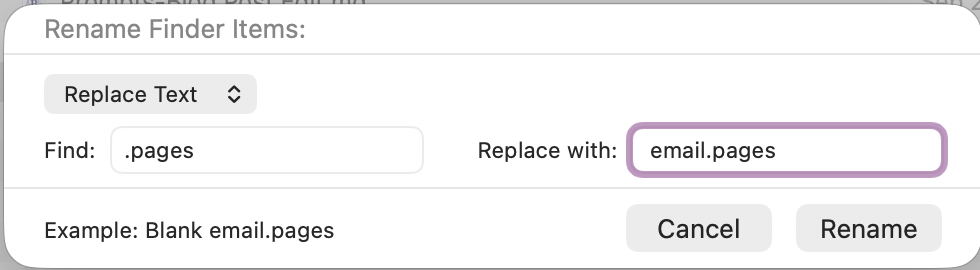
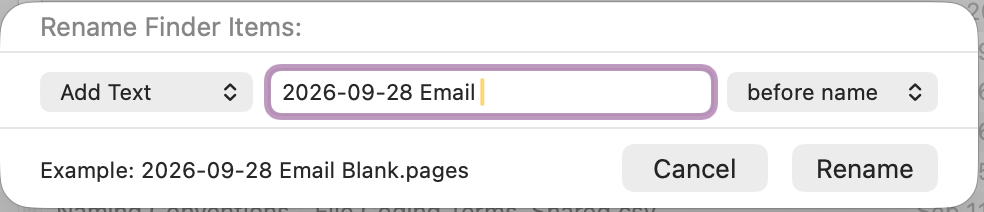
If you need to get more elaborate or complex with your batch renaming, you can use a standalone app like Renamer, or get way power user by asking the AI to write you a Terminal command or shell script to do the specific thing you need. For example, change all the dates in the filenames from MM.DD.YY to YYYY-MM-DD. Totally doable!
I don’t usually discuss Windows, but Windows PowerToys’ PowerRename gives you similar functions.
Separate power tips worth mentioning:
I find that many folks don’t know how to rename files at all, and I think the reason is that, on both Mac and Windows, you have to click on the filename, then wait a beat and click on it again. That’s counterintuitive: we are used to hearing “single-click” or “double-click,” but not “click-wait-click.” So:
- On macOS, single-click on the file to select it, then hit the <return> key on your keyboard. The filename will highlight and be ready to be typed over.
- On Windows, the same thing but hit <F2> instead of <return>.
Power up and happy expanding!


You must be logged in to post a comment.